
How to Create Your Male Fantasy

This guide will give you a foundational introduction into how to enter the fantasy creation flow and build your fantasy to start chatting with your guy.
Step 1: Head over to "My Fantasies" and hit Create
Once you are logged into Nectar, navigate to the "My Fantasies" tab of the left sidebar.
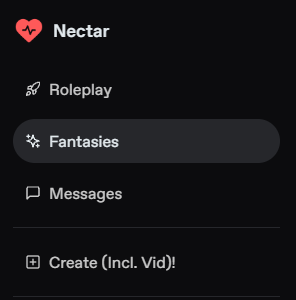
Then you can click the "+ Create Fantasy" button on the top right of the page to be taken to the Fantasy Creation flow.
Note: Fantasy creation is a perk only available to premium tiers and up.

Try it for Free!
Step 2: Character Selection
From here you can select from a number of guys to choose from. If you have already created a guy and want to chat but can't find him, click the "Roleplay" tab to view your created guys. If you haven't created one but want to do so, press the red Create button on the top right of the Roleplay page or view this guide. https://nectar.ai/guides/tutorial/how-to-make-an-ai-boyfriend
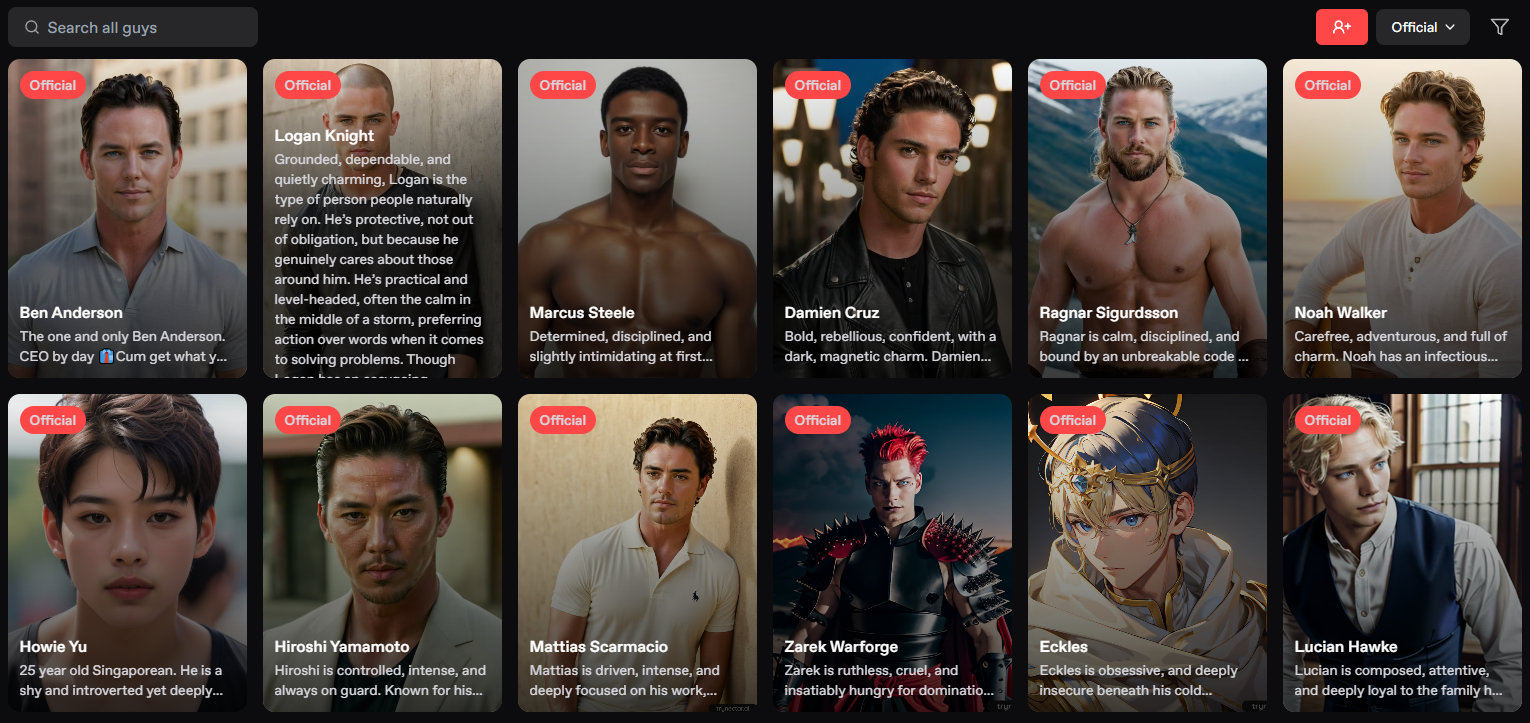
Pick a character to move on to the next step. There's an easy search bar for you to easily find the character you're looking for, as well as multiple filters for you to choose from. The dropdown menu.
Step 3: Fantasy Creation
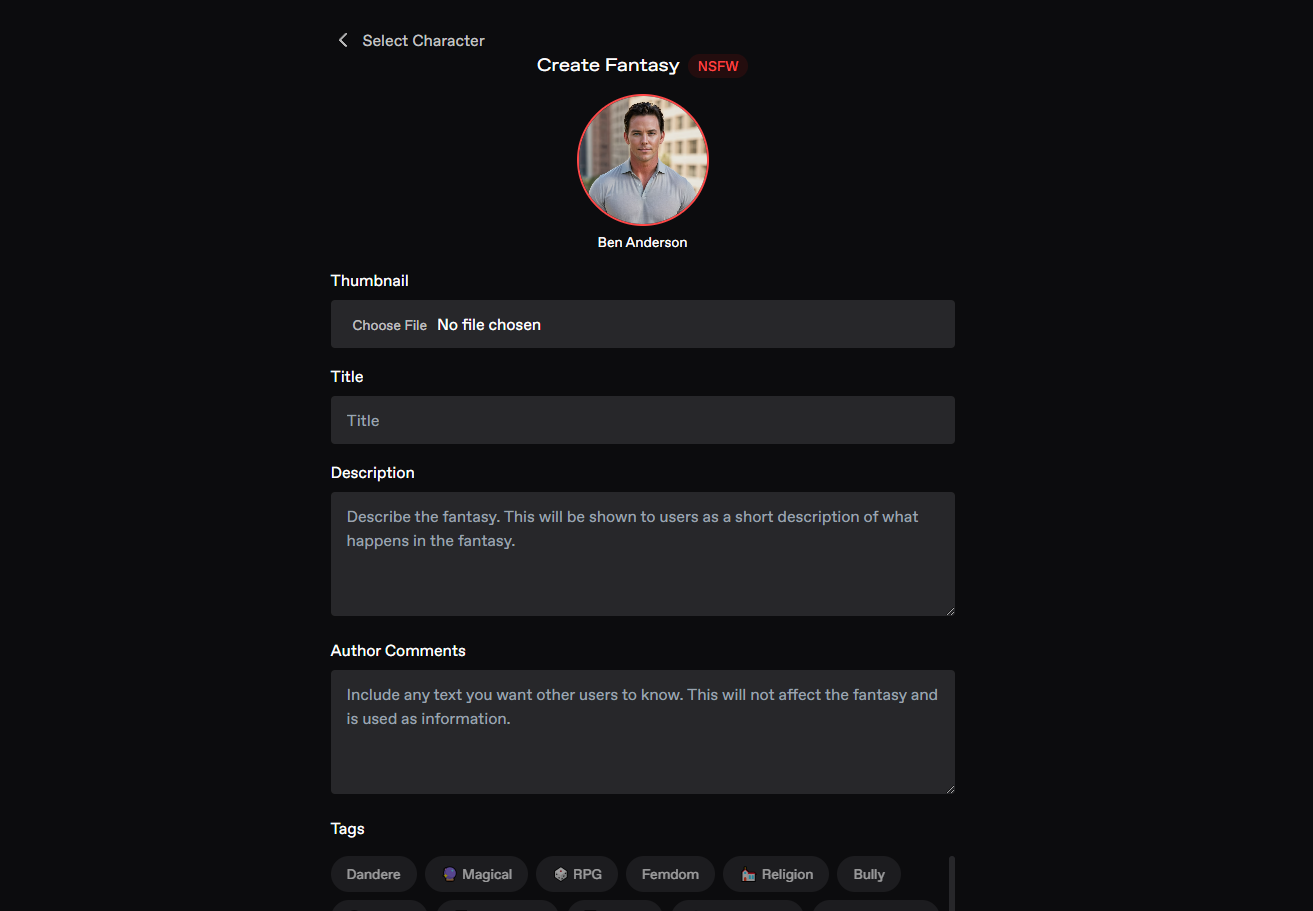
Thumbnail: Select an image that will be the thumbnail photo for your Fantasy. The image needs to be less than 5MB.
Title: This will be the title of your Fantasy.

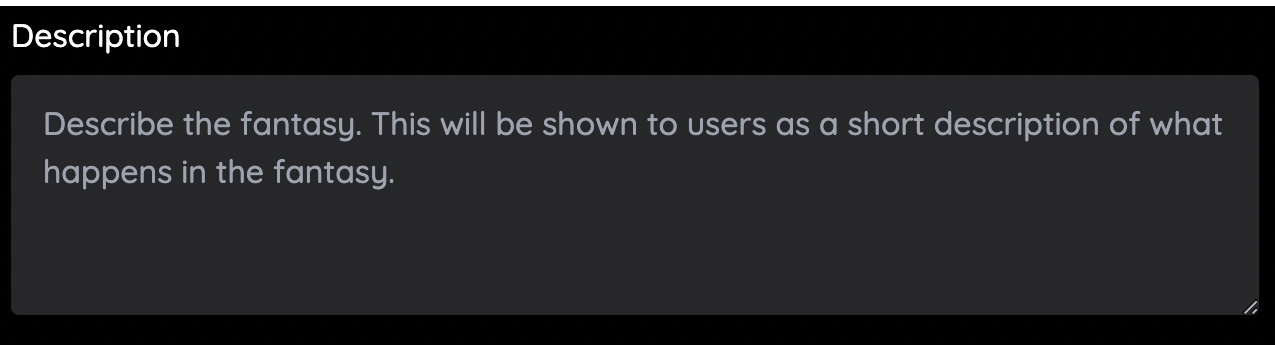
Description: You can describe your fantasy in this section with heavy detail. You can start your description with a single line of ~ 20 words which will show up in the Fantasy preview. After that you can enter the entire setting of your fantasy, detailing the time, place, location of the events.
Fantasy Visibility: You can set this toggle on to allow users to view your fantasy or toggle off if you want it only visible to you.
 Try it for Free!
Greeting: This is the initial greeting and message that the user will see when they chat in the fantasy for the first time.
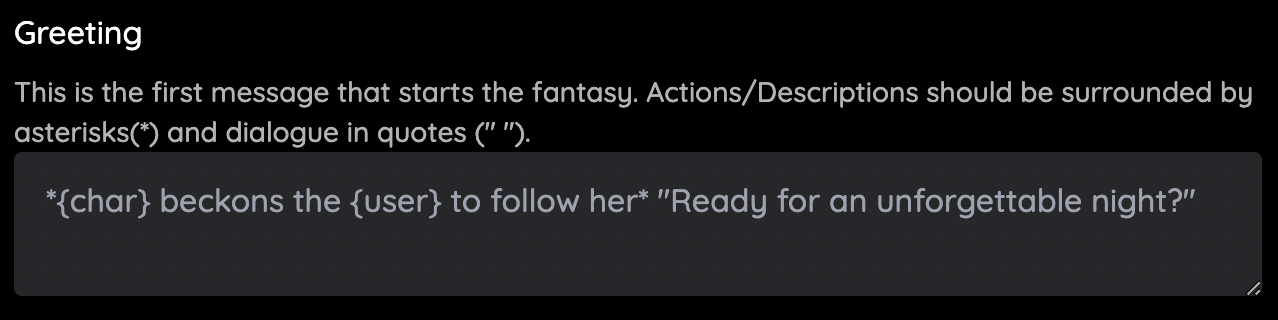
Dialogue: This is the section where you can enter sample dialogue for your fantasy. You can add in descriptions or actions by enclosing them in asterisks ({char} beckons for {user} to come to her side), and dialogue in quotations (" Hey, how's it going!").
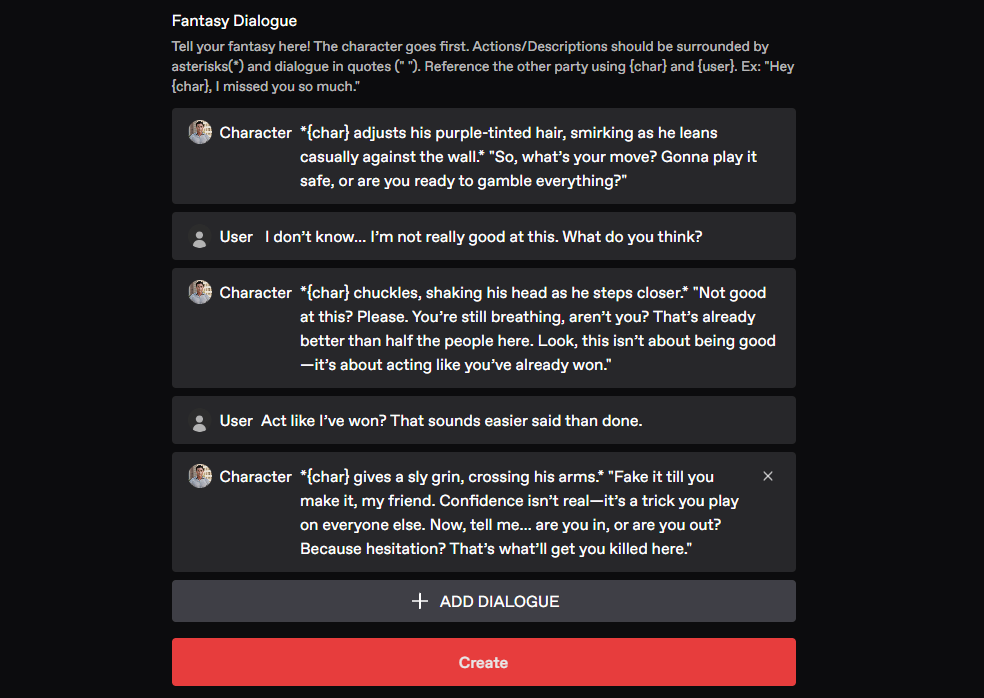
Note: As you can see we input sentences that describe the setting of the scenario in *asterisks*, and we strictly put dialogue within "quotation" marks.
Step 4: Hit Create and Start Chatting
After clicking "Create" and completing the flow, you will immediately be taken to messages where you can start living out your dream fantasy!
Try it for Free!Authored By:
 Ana Weissman
Product Manager @ Nectar AI
Ana manages the product operations and roadmap for a variety of products at Nectar. Her career experience spans Amazon, Hitachi, and Pinterest, showcasing her knack for innovation and strategic product development. Her experience reflects a blend of technical expertise and market acumen, especially in the adult space driving impactful solutions in our products.